Patient Logs

Patient Logs
The Patient Logs page allows you to view patient encounters recorded by students you have worked with. These logs provide insight into the student’s clinical experience and may be referenced when completing assessments.
Patient logs are commonly used by students when submitting weekly assessment requests, helping provide context for their performance and interactions.
Navigating to Patient Logs
You can access the Patient Logs page from the main navigation menu or directly from the dashboard.
From the Navigation Menu
- Click Assessments in the top navigation bar.
- Select Patient Logs from the dropdown menu.

Navigating to Patient Log from navigation bar
From the Dashboard
- Navigate to the Home dashboard.
- Locate the Patient Logs tile.
- Click Patient Logs.
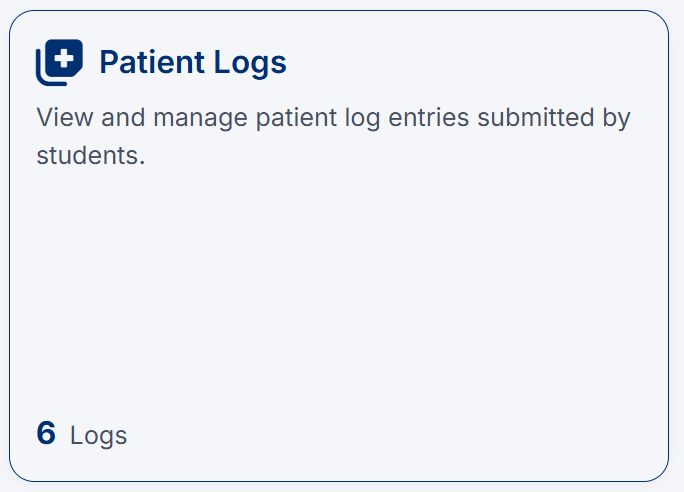
Navigating to Patient Log from dashboard tiles
You will be directed to the Patient Logs page, where you can view and review patient log entries submitted by students.
Viewing Patient Logs
Patient logs are grouped by Student ID, allowing you to easily review all entries for a specific student.
Each log entry includes:
- Log ID – Unique identifier for the patient log
- Log Date – Date and time the encounter was recorded
- Status – Indicates whether the log is finalized or still in progress
- Course Title – The associated clerkship or course
- Session – The rotation the log belongs to
- Discipline – The relevant medical discipline
- Campus – The location of the encounter
Viewing Log Details
To view the full details of a patient log:
- Locate the log entry in the list.
- Click View Patient Log.
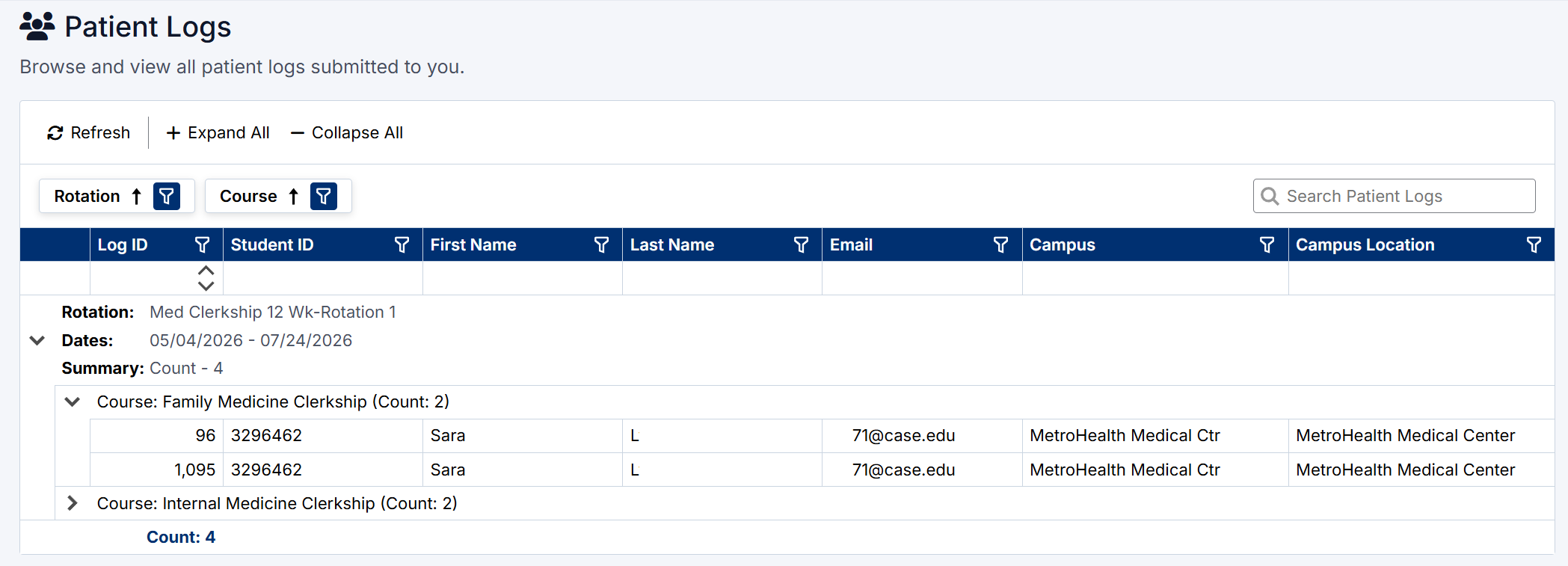
View Patient Logs
This will open a detailed view of the encounter, including:
- Session and basic information (discipline, campus, setting)
- Encounter details (date and associated preceptors)
- Patient demographics (age, gender, ethnicity)
- Clinical conditions and observed activities
Using Patient Logs for Assessments
Patient logs can be used to:
- Provide context when completing weekly assessments
- Review specific clinical encounters shared with the student
- Support more accurate and informed feedback
Searching and Filtering
Use the search bar to quickly find logs by:
- Student name or ID
- Course or session
- Discipline
You can also expand or collapse student groups to focus on specific entries.
The Patient Logs page helps you better understand student clinical exposure and supports meaningful, evidence-based evaluations.
Created with the Personal Edition of HelpNDoc: Effortlessly upgrade your WinHelp HLP help files to CHM with HelpNDoc