My Tasks

My Tasks
The My Tasks page provides a centralized view of all assessments assigned to you that require action.
This includes:
- Ad Hoc Assessments
- Weekly Assessments
- Any pending evaluation requests
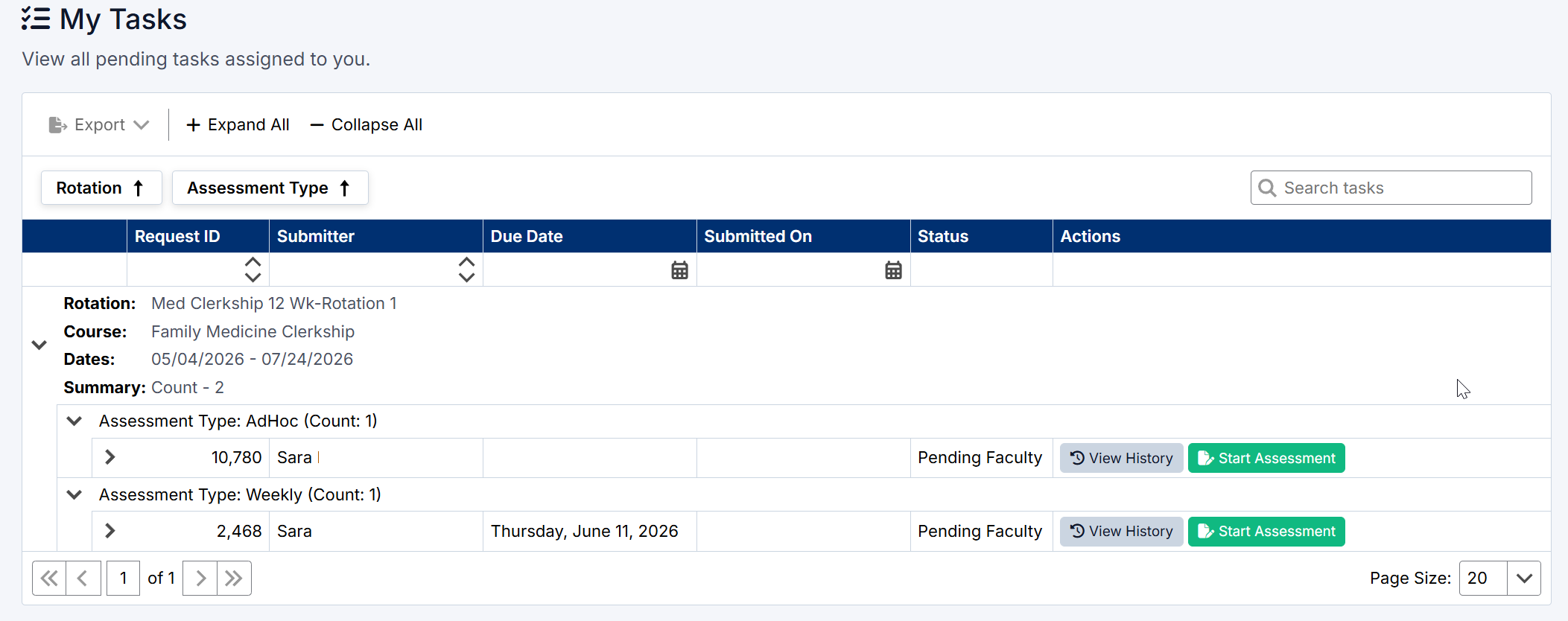
My Tasks Screen
Accessing My Tasks
To view your tasks:
- Navigate to My Tasks from the application menu
- The page will display all pending and assigned assessments

Navigation to My Tasks
Understanding the Task List
Tasks are grouped by:
- Rotation
- Assessment Type (e.g., Ad Hoc, Weekly)
Each task includes:
- Request ID – Unique identifier for the assessment
- Submitter – The student who requested the assessment
- Due Date – When the assessment should be completed
- Submitted On – Date the request was created
- Status – Current progress (e.g., Pending Faculty)
Available Actions
For each task, you can:
Start Assessment
Click Start Assessment to open and complete the assessment form.
View History
Click View History to see the workflow history, including:
- When the request was created
- Reminder notifications
- Current status

Add and View Assessments button
Filtering and Navigation
You can refine your view using:
- Rotation filter
- Assessment Type filter
- Search bar to quickly locate specific tasks
Use:
- Expand All / Collapse All to control how tasks are displayed
- Pagination controls to navigate through multiple pages
Best Practice
Complete assessments as soon as possible after receiving a request to ensure timely and accurate feedback.
Created with the Personal Edition of HelpNDoc: Easily create EBooks